How to Use Foreign Currency to Make Payment (New Version)
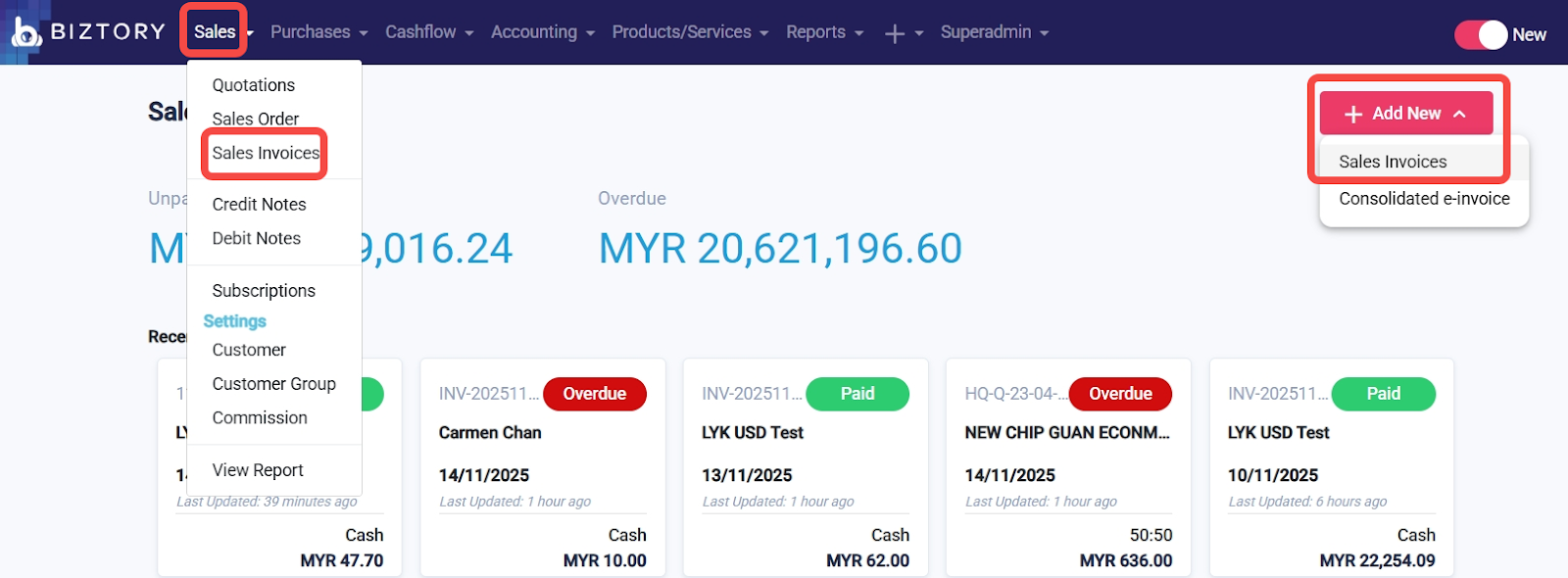
Go to Sales > Sales Invoices > Add New Sales Invoice.
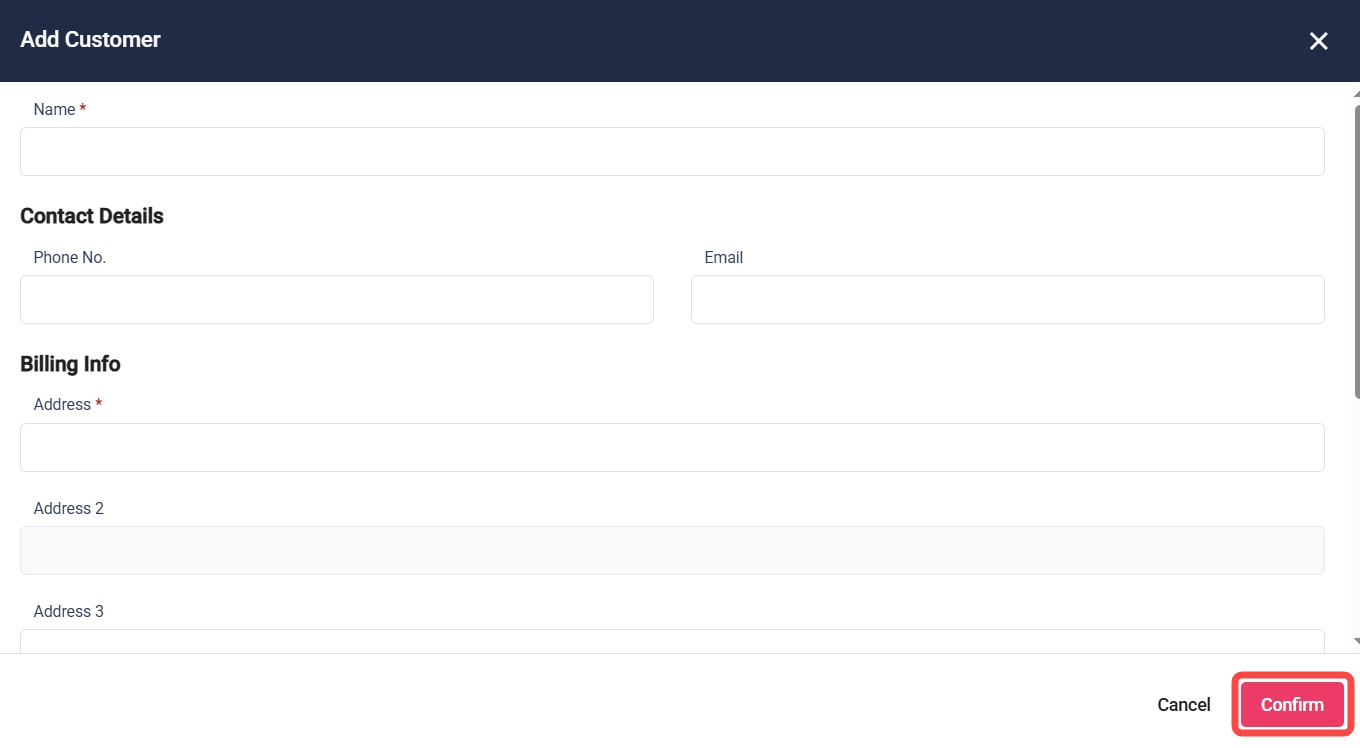
Click Add Customer and fill in the customer details and click Confirm.
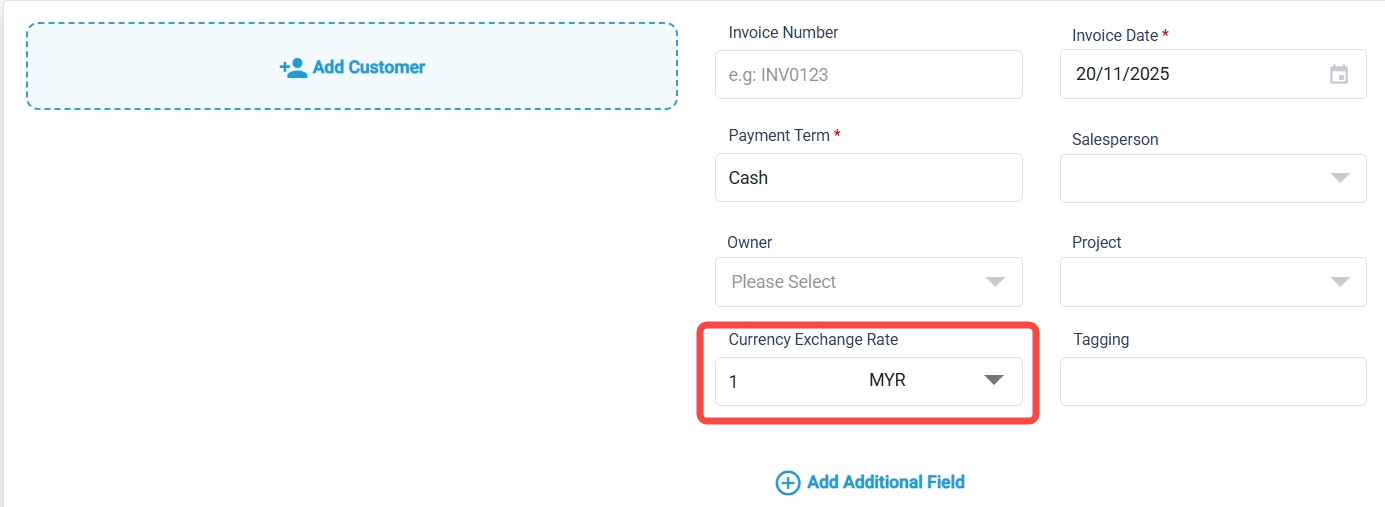
Click on Currency Exchange Rate and select the currency.
Add the item code, ensure the price is in the correct currency, then click Save.

Open the newly created invoice by clicking the reference number

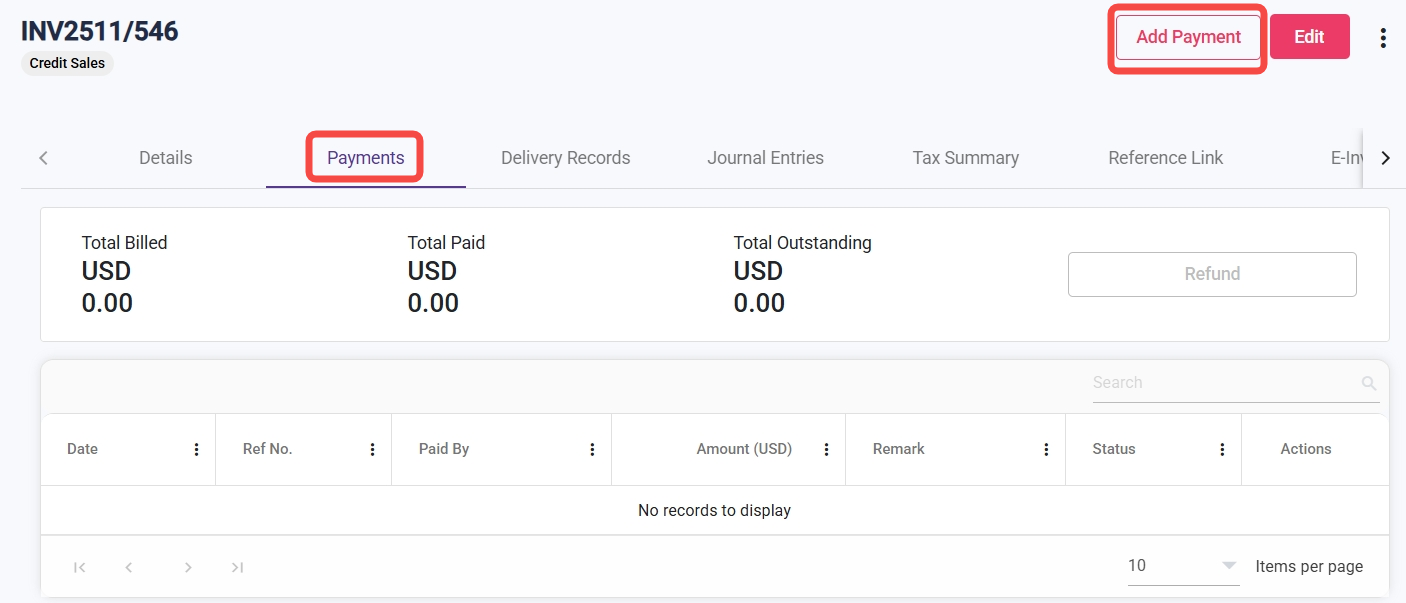
Go to the Payment tab and click Add Payment.
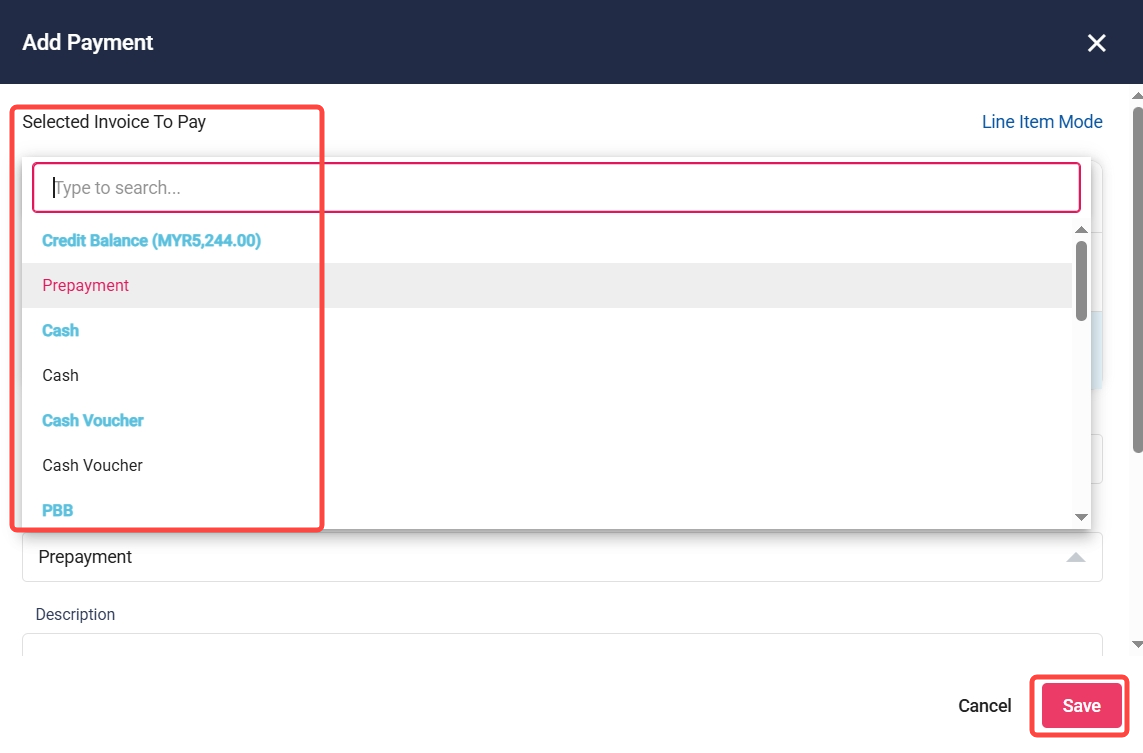
Choose the payment method and click save.
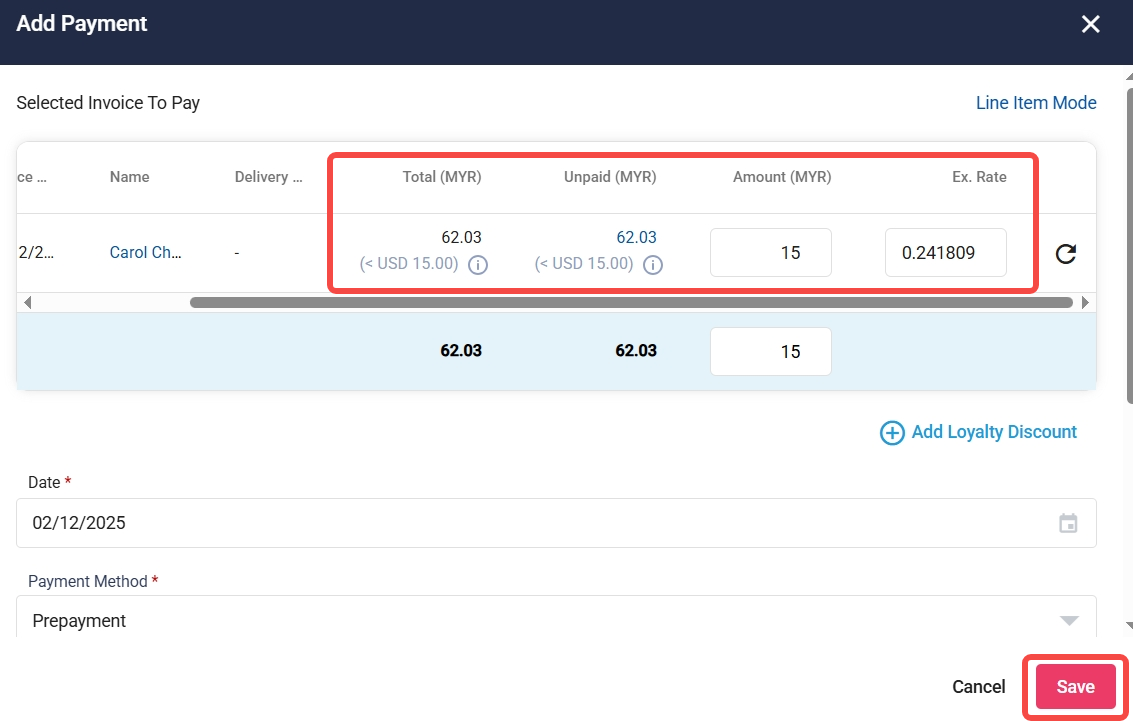
Click the amount field to view the conversion (e.g., MYR to USD), then click Save. If there is no ‘Get Latest Rate’ option, the conversion rate must be entered manually, as it cannot be viewed or shown automatically.
Note: If you are on the Growth Plan, you must enter the exchange rate manually. The system will not auto-populate the exchange rate.
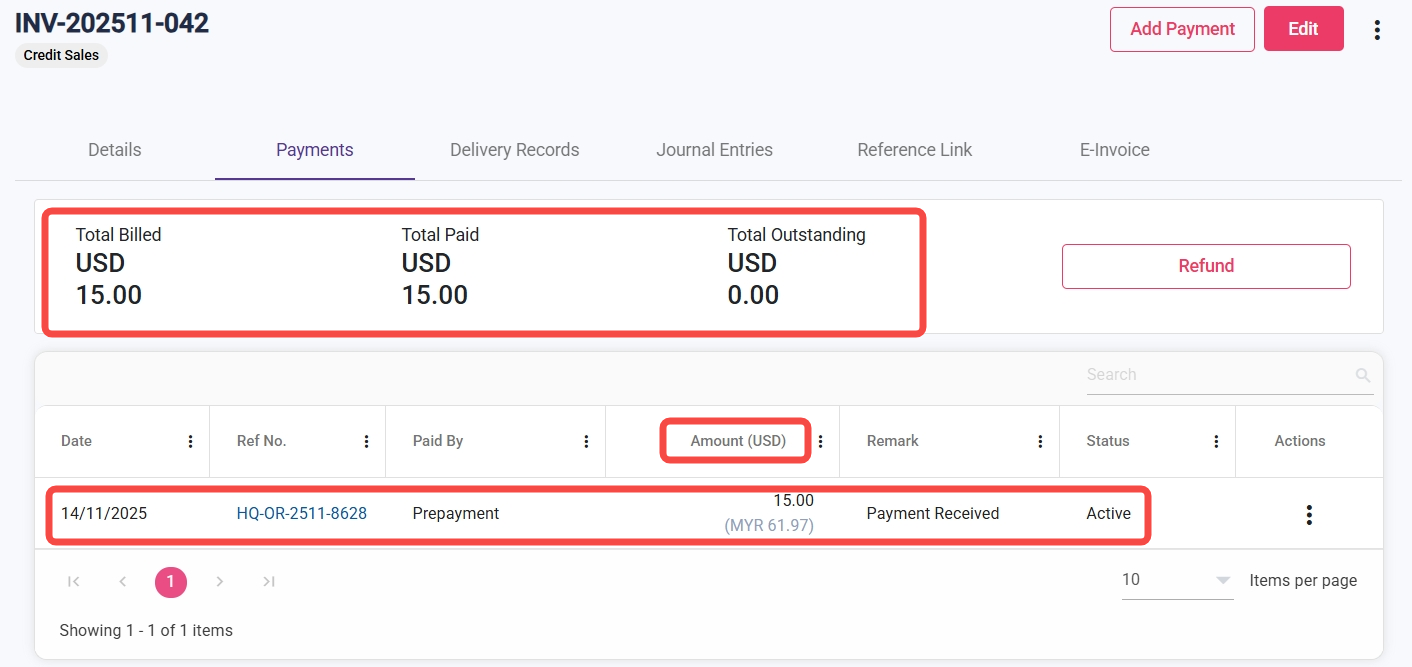
Go to Invoice > Payments to view the payment recorded in the selected foreign currency.
Was this article helpful?
That’s Great!
Thank you for your feedback
Sorry! We couldn't be helpful
Thank you for your feedback
Feedback sent
We appreciate your effort and will try to fix the article