How to enable Delivery Order? (New version)
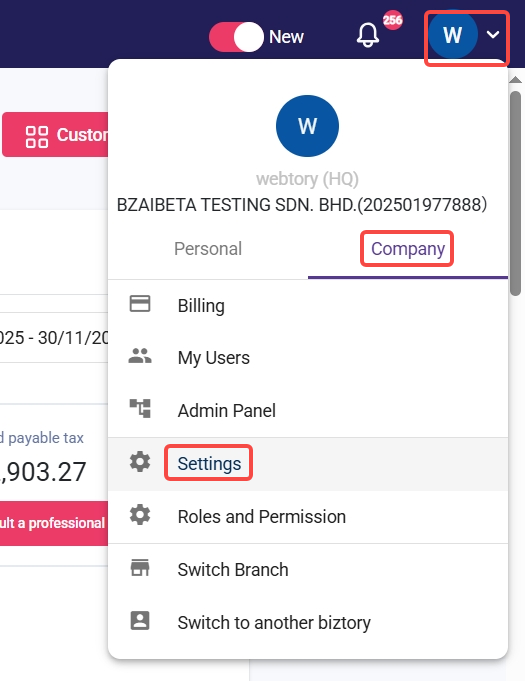
Go to Company > Settings.
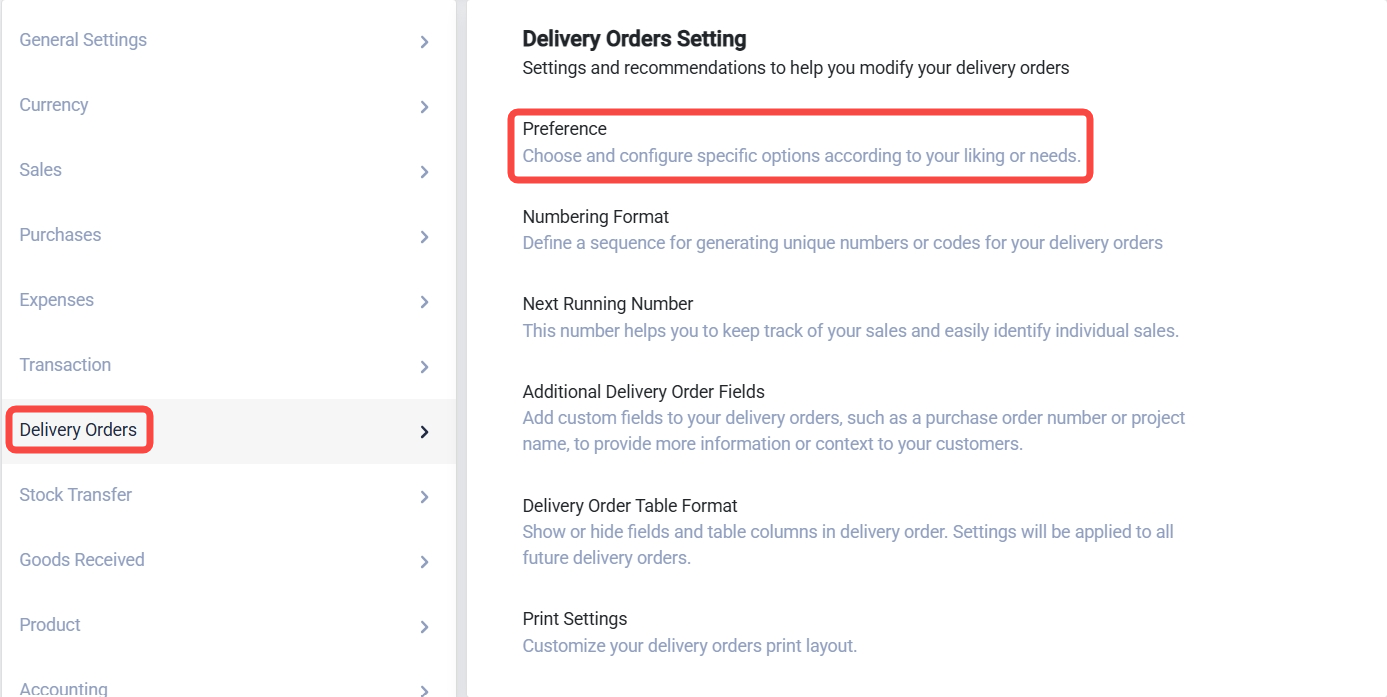
Navigate to Delivery Order > Preference.
Toggle Enabled.
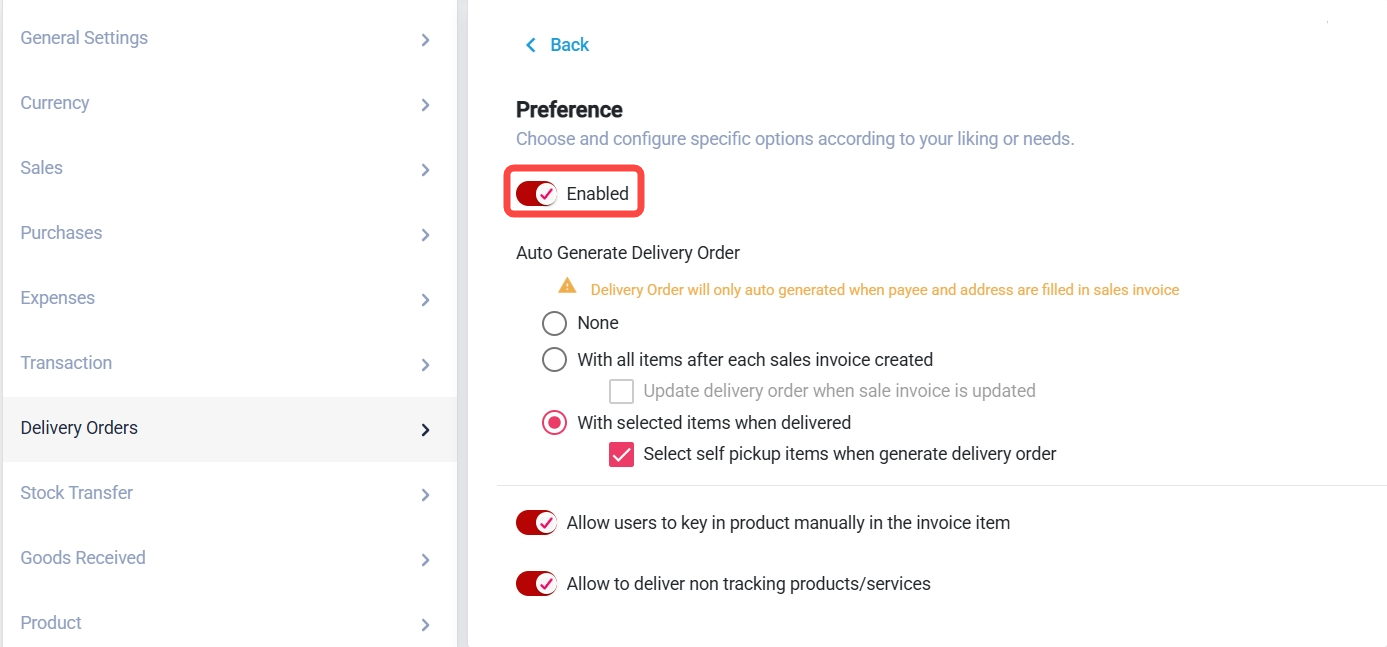
Delivery Order Settings Explained
i) Auto Generate Delivery Order: None
What it does:
The system will not auto-create a Delivery Order when you save a Sales Invoice.
When to use:
You prefer to create DOs manually.
You sync orders from e-commerce platforms (e.g., SiteGiant, EasyStore) and want to avoid duplicated DOs.
ii) Auto Generate DO: With all items after each Sales Invoice save
What it does:
Automatically generates a Delivery Order with all items immediately after the Sales Invoice is saved.
When to use:
You always deliver the full order at once.
Ideal for businesses with immediate, complete fulfillment.
iii) Tick “Update DO When Sales Invoice is Updated”
What it does:
Automatically updates the DO if you make changes to the linked Sales Invoice.
When to use:
You want the DO to always match the Invoice (e.g., changed quantity, item description).
When NOT to use:
You need to edit certain details (e.g., Owner name) only on the invoice or DO without affecting the other.
iv) Auto Generate DO: With selected items when delivered
What it does:
DO is not auto-created upon saving the invoice.
You must open the Sales Invoice → select items → click Deliver Items to generate the DO.
When to use:
Partial Delivery scenarios:
Example: Customer ordered 10 units, but you only deliver 5 now.
Generate a DO for only 5 units and deliver the rest later.
v) Select “Self Pickup”
What it does:
Marks items as self-collection by the customer instead of delivery via courier.
When to use:
Customer collects goods from your store or warehouse.
No delivery arrangement is needed.
Was this article helpful?
That’s Great!
Thank you for your feedback
Sorry! We couldn't be helpful
Thank you for your feedback
Feedback sent
We appreciate your effort and will try to fix the article