The Work Orders feature allows businesses to manage the conversion of raw materials into finished products. By tracking the input and output of goods, you can maintain accurate inventory levels and monitor production efficiency.
1. Getting Started with Work Orders
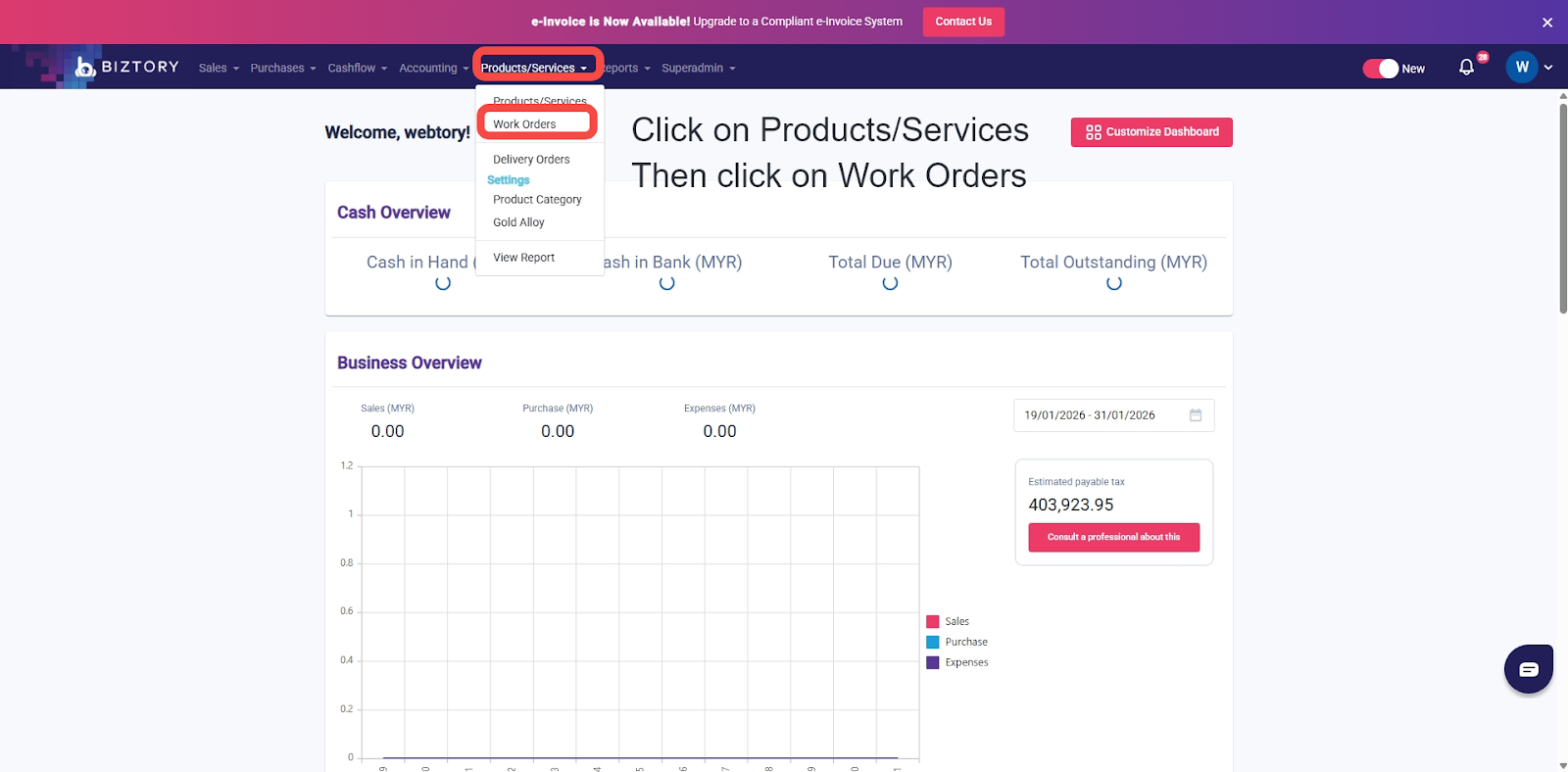
Before creating a work order, you must navigate to the correct section within the system.
Step 1: Log in to the system.
Step 2: From the top navigation bar, go to Products/Services → Work Orders.
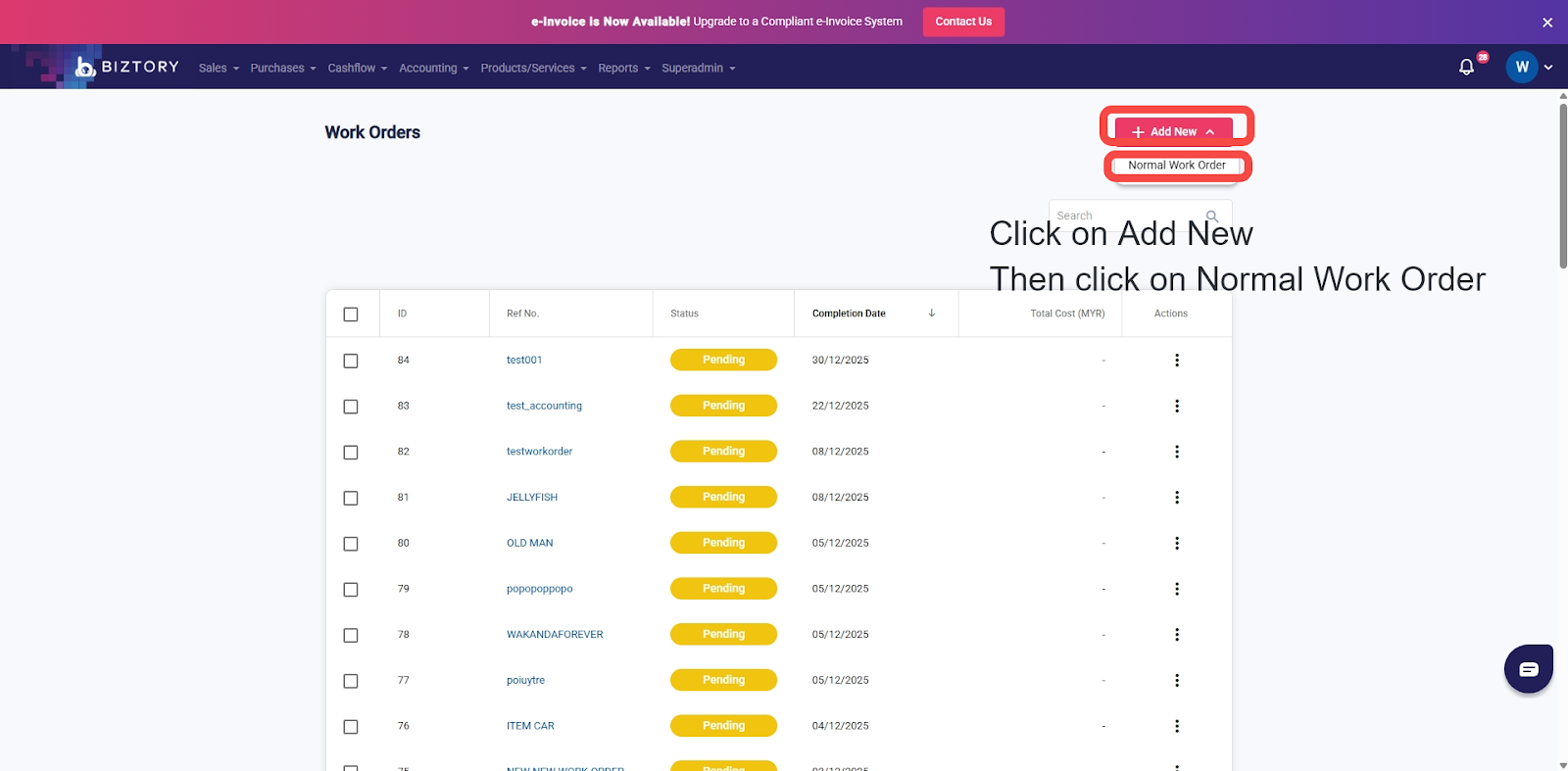
Step 3: Click on Add New and select the Normal Work Order.
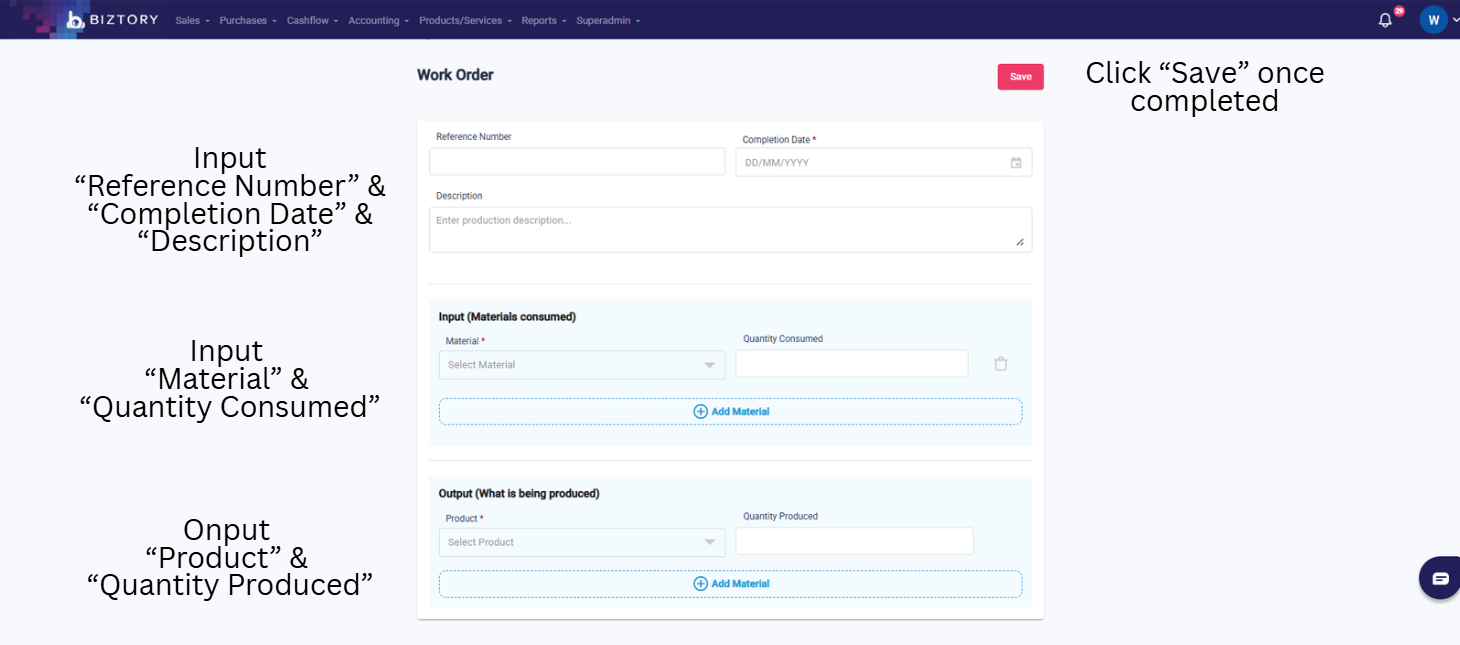
Step 4: Fill in all the required details such as reference code, completion date, description, input material and quantity consumed, and output product and quantity produced.
Step 5: Once everything looks good, click Save.
2. Example
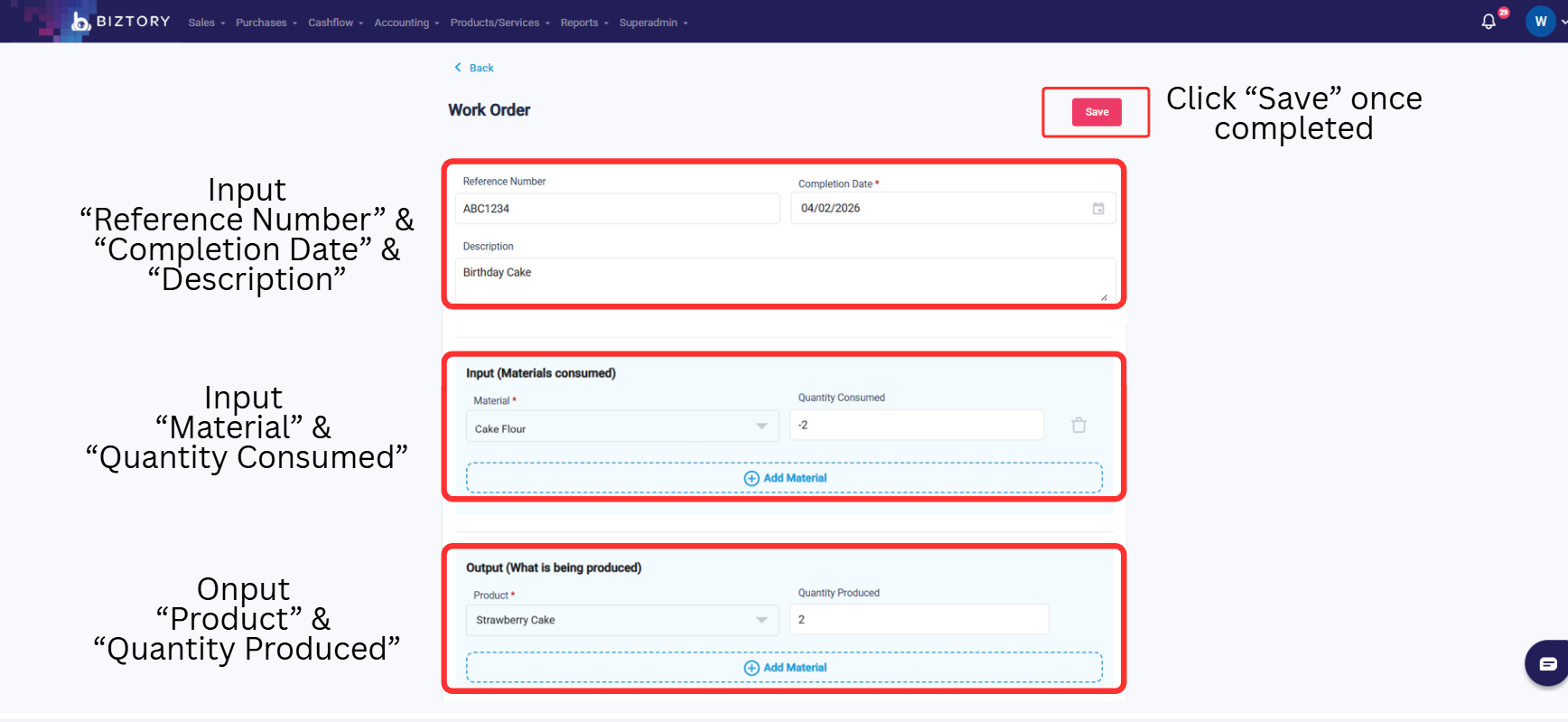
To ensure accurate inventory tracking, follow this example of how to fill in the production details.
Reference Number – Enter a unique code to track this specific production run. (eg: ABC1234)
Completion Date – Select the date the product was finished to ensure it is recorded in the correct accounting period. (eg: 04/02/2026)
Description – Provide a brief name or note for the task to help identify it later in your records. (eg: Birthday Cake)
Input Material – Choose the raw material or stock item that will be used up during production. (eg: Cake Flour)
Quantity Consumed – Enter the amount of material used. Use a negative sign to deduct this from your current stock. (eg: -2)
Output Product – Select the final finished item that is ready to be sold or stored. (eg: Strawberry Cake)
Quantity Produced – Enter the total number of finished items created to add them to your inventory. (eg: 2)
Click "Save" – Finalize the entry to update your stock levels across the system.
You’re All Set!
You should now be able to handle Work Orders confidently. Your inventory will automatically adjust to reflect the materials used and the new products added to your stock.
Was this article helpful?
That’s Great!
Thank you for your feedback
Sorry! We couldn't be helpful
Thank you for your feedback
Feedback sent
We appreciate your effort and will try to fix the article