How to Create a Recurring Expense? (New Version)
Recurring Expenses allow Biztory to automatically generate repeated expenses (e.g., rent, utilities, subscriptions) based on a schedule, reducing manual entries each month.
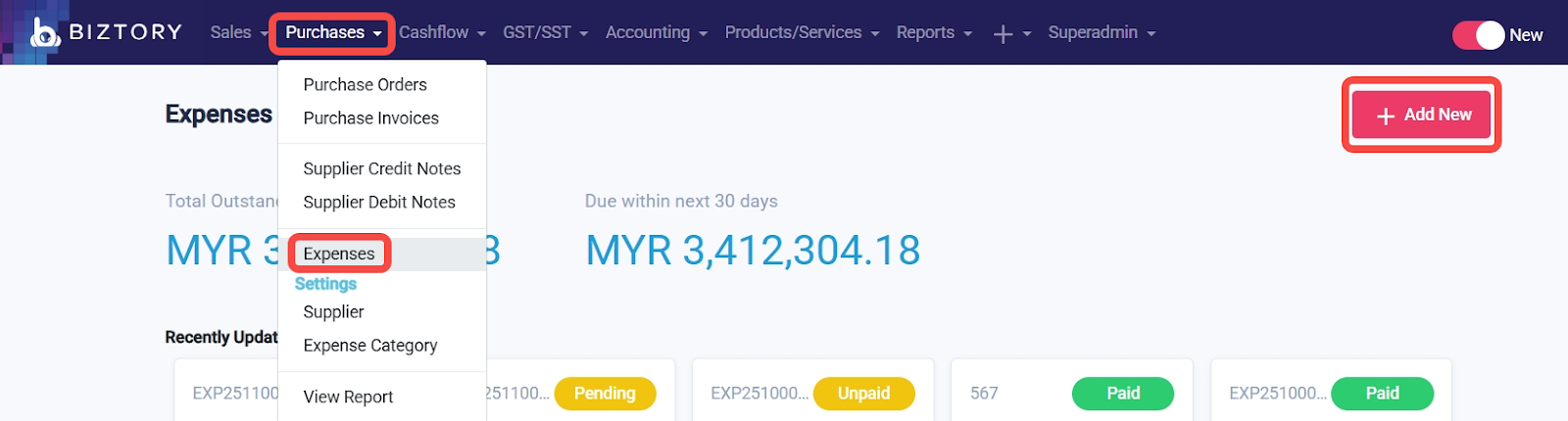
Click on Purchases in the main menu and select Expenses. Click on Add New.
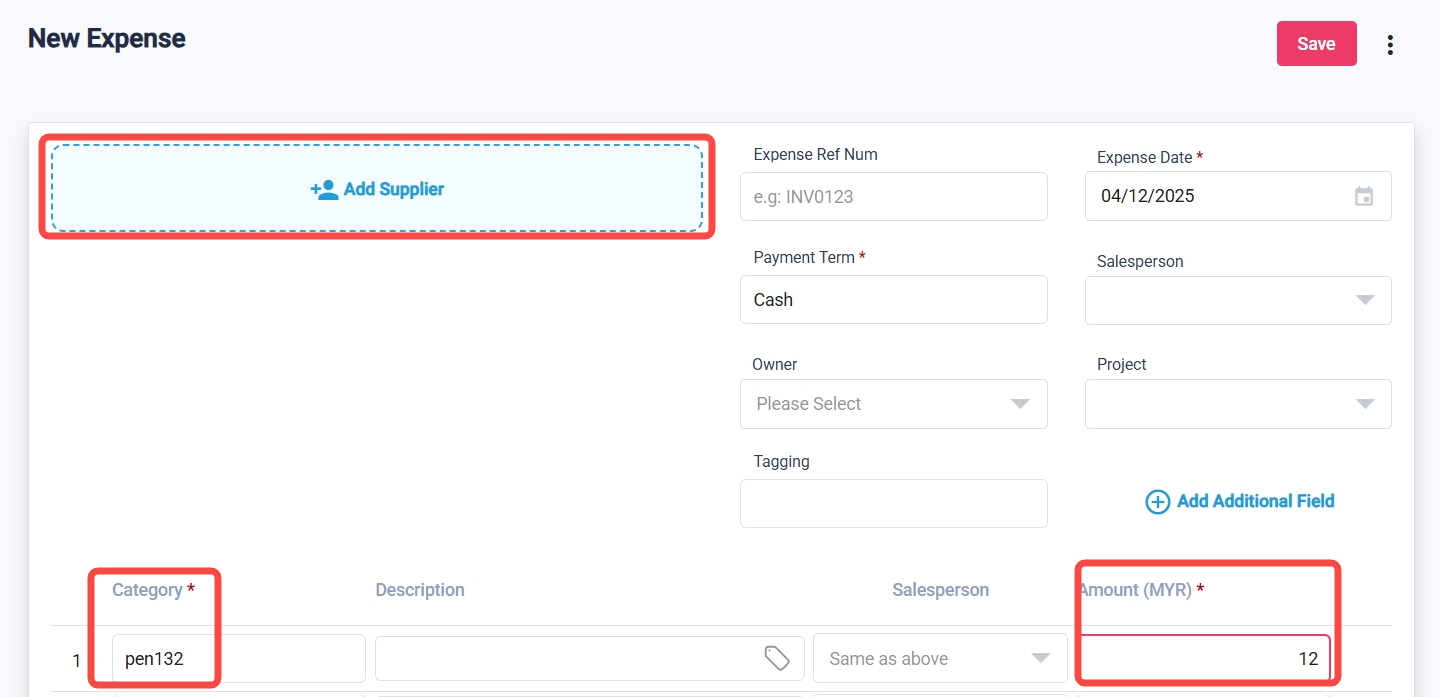
Fill in the required details, such as the Supplier, Expense Details, and Amount.
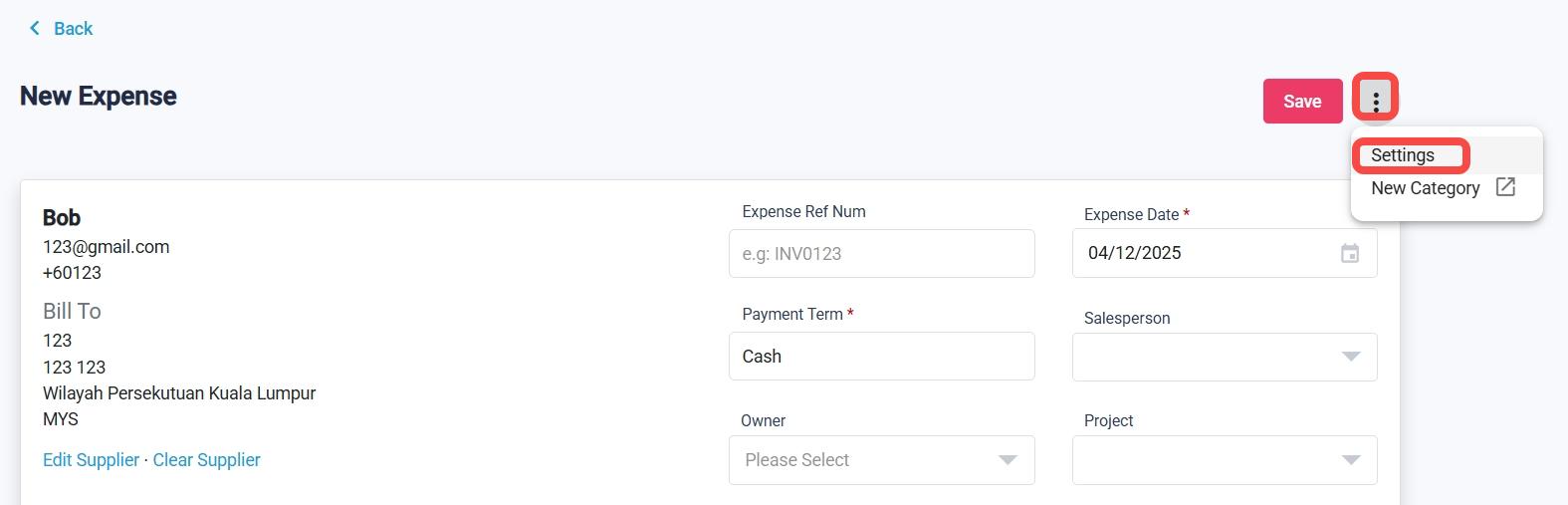
Clicking the three-dot, selecting Settings.
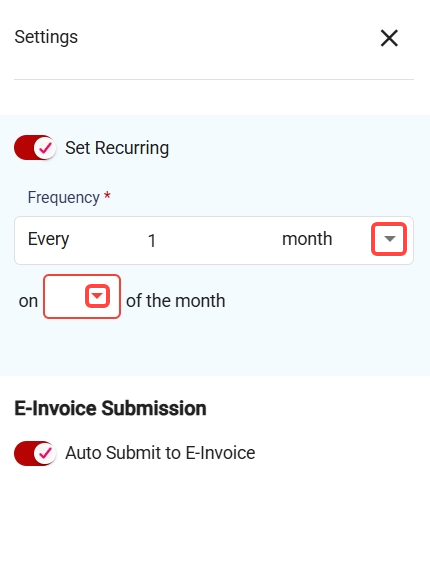
Toggling on Set Recurring
What it does:
Instructs Biztory to automatically generate a copy of this expense based on your defined schedule.
Example: Office rent or internet bill will auto-create each month without manual entry.
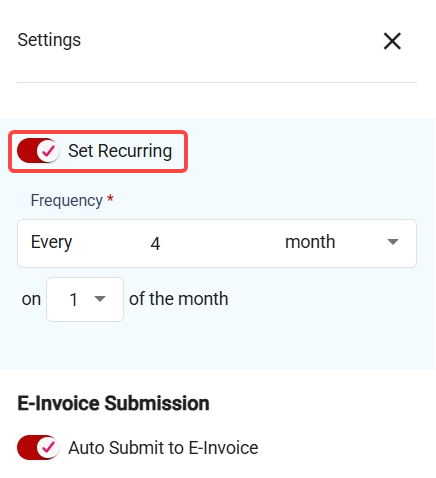
Choose Frequency (number) and Unit (Day/Week/Month/Year).
Frequency determines how many units between each expense.
Unit determines whether it’s in days, weeks, months, or years.
Example: Frequency = 4, Unit = Month → create a new expense every 4 months.
For monthly schedules, you can select “On [Num] of the month” to define the day.
Example: Pay on the 7th → system creates the expense on 7 Jan, 7 Feb, 7 Mar, etc.
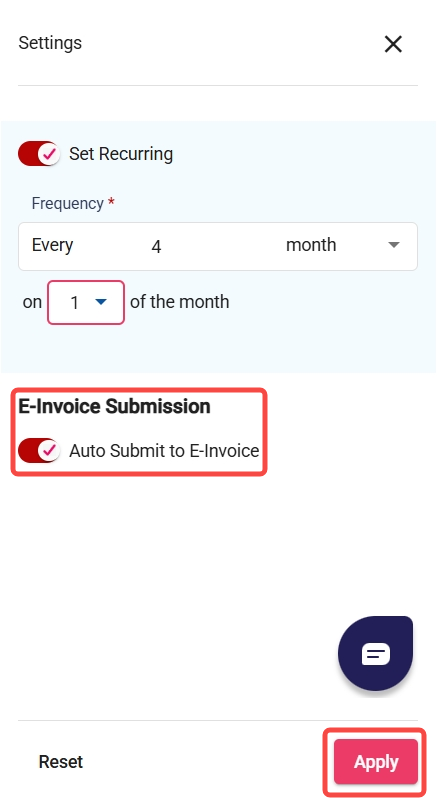
Auto Submit E-Invoice (Optional)
When this option is toggled ON, Biztory will immediately submit the newly generated recurring expense to LHDN as an e-Invoice.
If Auto Submit is OFF: The expense is still created automatically, but you must manually submit it to e-Invoice later.
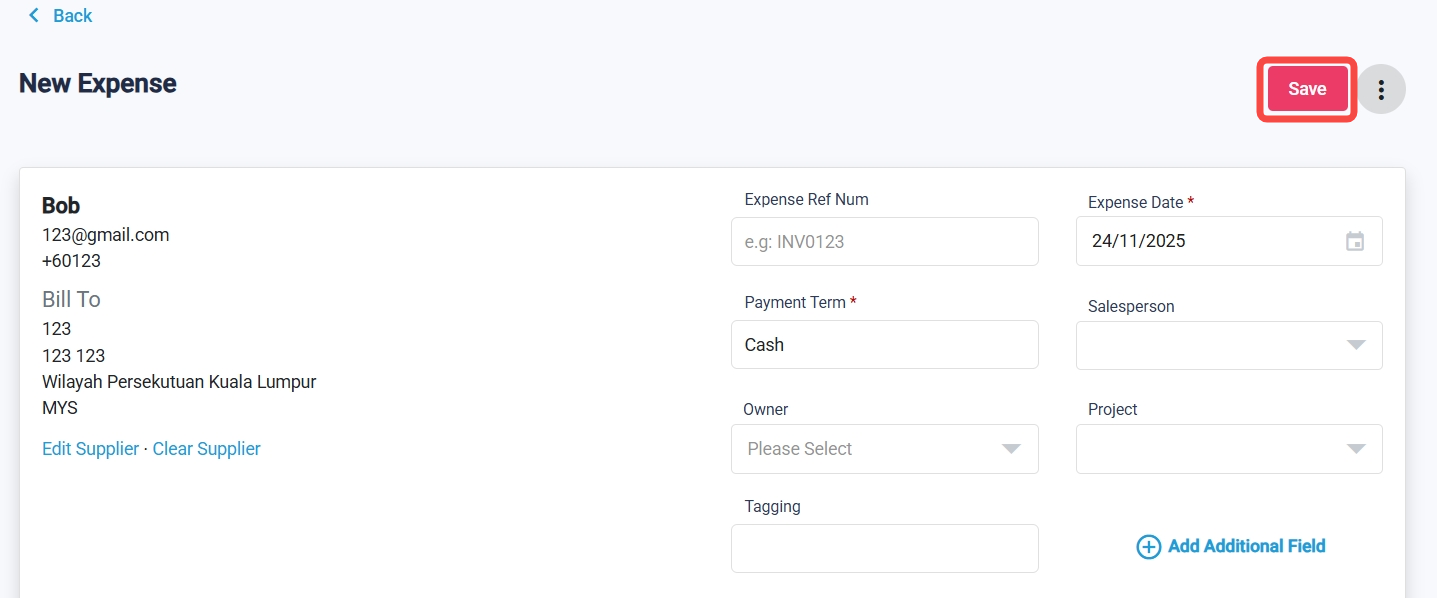
Click Save to confirm the recurring expense setup.
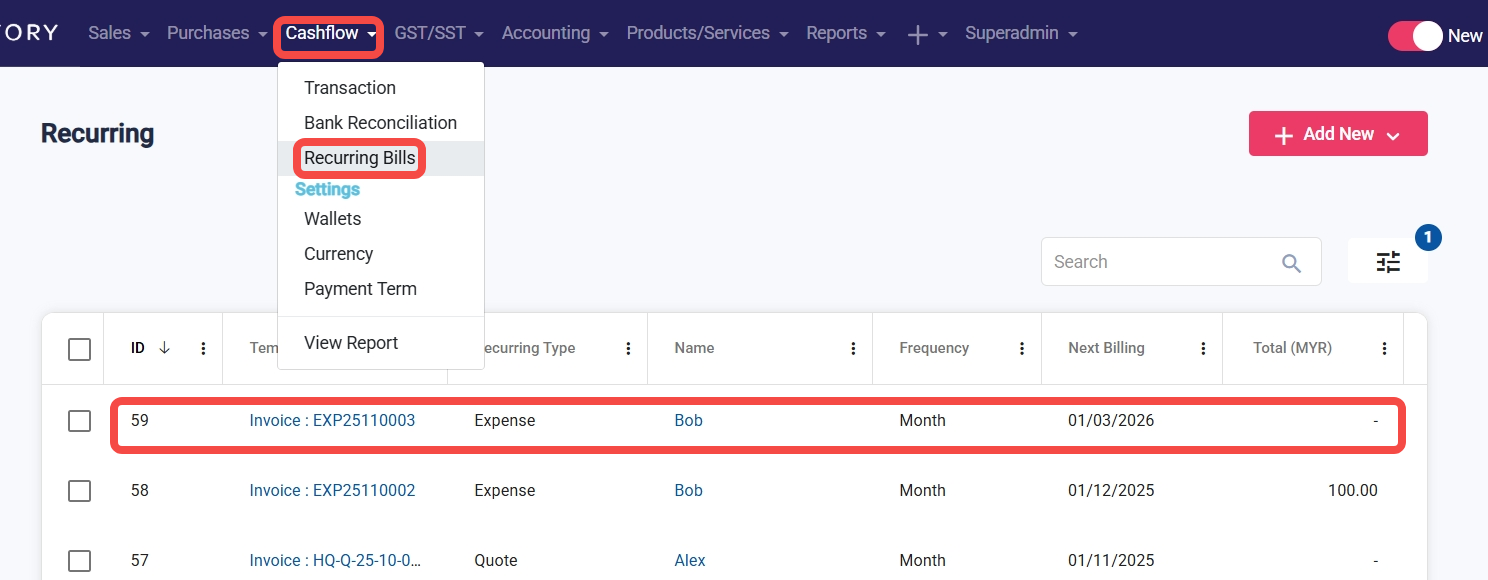
View/manage all recurring items: Cashflow → Recurring Bills
Was this article helpful?
That’s Great!
Thank you for your feedback
Sorry! We couldn't be helpful
Thank you for your feedback
Feedback sent
We appreciate your effort and will try to fix the article